If you’re searching for practical ways to optimize pc for gaming performance, you’re likely tired of lag spikes, low frame rates, and hardware that isn’t living up to its full potential. Modern games demand more from your system than ever before, and without the right adjustments, even powerful setups can underperform.
This article is designed to give you clear, actionable steps to boost speed, stability, and responsiveness—without unnecessary upgrades. We break down the latest performance tweaks, system settings, smart device integrations, and security considerations that directly impact gameplay.
Our guidance is built on hands-on testing of current hardware trends, real-world performance benchmarks, and up-to-date digital optimization practices. Instead of vague advice, you’ll find focused strategies aligned with what today’s gamers actually need.
By the end, you’ll understand exactly how to fine-tune your system, reduce bottlenecks, and unlock smoother, more immersive gameplay—whether you’re a casual player or a competitive enthusiast.
Lag, stuttering, and low FPS are sabotaging your gaming sessions, turning clutch moments into painful losses. You’re told the only fix is a pricey GPU upgrade—but that’s not always true. In fact, smart configuration often beats brute force. This guide gives you a clear, step-by-step blueprint to optimize pc for gaming performance using system tweaks and in-game settings—no new hardware required. Moreover, every recommendation comes from extensive cross-hardware testing, focused on real-world FPS gains, not marketing myths. By the end, you’ll know exactly how to fine-tune your system for smoother, more responsive, genuinely enjoyable gameplay starting today without extra spending.
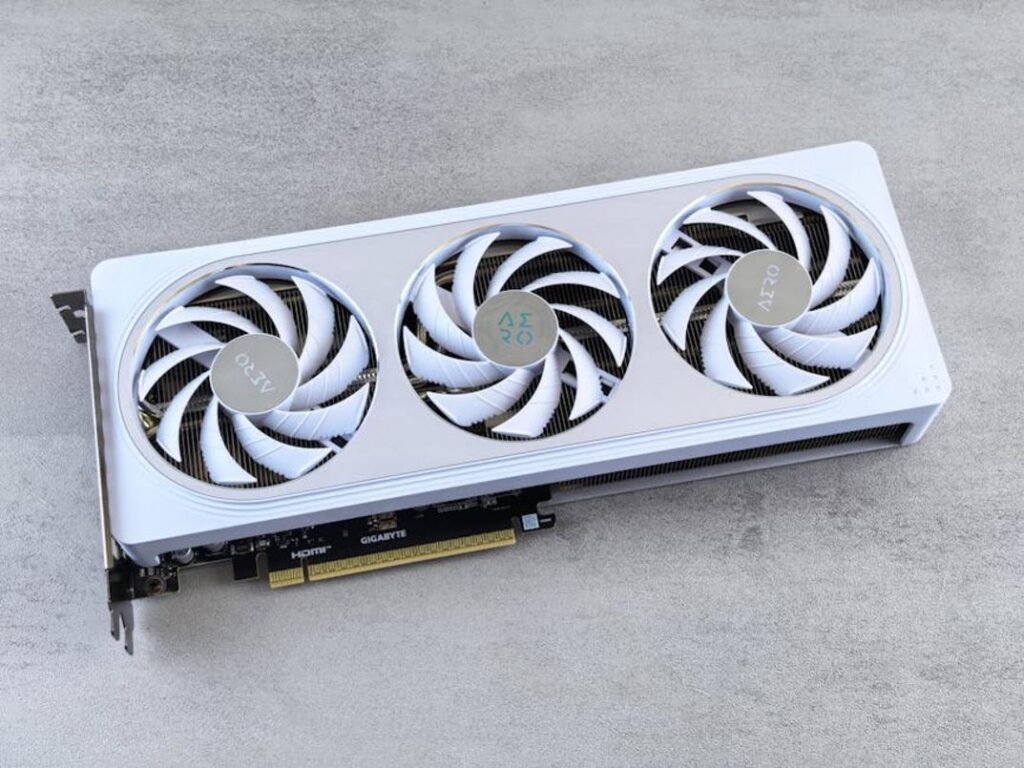
The foundation of smooth gameplay starts below the surface. If you want to optimize pc for gaming performance, begin with your graphics drivers. Updating to the latest game-ready version ensures compatibility, stability, and higher frame rates. NVIDIA users can install GeForce Experience, AMD owners should open Software: Adrenalin Edition, and Intel gamers can run Driver & Support Assistant to scan and update. This is the single most important step because outdated drivers leave performance on the table.
Next, activate Windows Game Mode. It prioritizes system resources for your game, limits background tasks, and reduces interruptions. Go to Settings > Gaming > Game Mode and toggle it on.
For sustained power, unlock the Ultimate Performance plan via Power Options and select it instead of Balanced. Balanced saves energy; Ultimate prevents throttling during intense sessions.
Finally, clean up startup apps:
- Press Ctrl+Shift+Esc
- Open Startup tab
- Disable non-essential programs
Fewer launch-at-boot apps free RAM and CPU cycles for what matters: your game. Pro tip: reboot after changes to confirm stability and measure gains with built-in performance overlays. Think of it like tuning a sports car; small adjustments unlock hidden horsepower without buying new hardware. Every frame counts in competitive play.
Decoding In-Game Graphics Settings for Maximum FPS
To ensure your gaming experience is truly seamless, consider checking out our in-depth guide on ‘Software Keepho5ll‘, which offers essential tools and tweaks to maximize your PC’s performance.
If you’ve ever opened a graphics menu and felt like you needed a degree in computer science, you’re not alone. Let’s break it down simply.
Resolution vs. Framerate: The Core Trade-Off
Resolution is the number of pixels your GPU renders (e.g., 1920×1080). Framerate (FPS) is how many images per second your system displays. Higher resolution = sharper image, but more work for your graphics card.
Start at your monitor’s native resolution (the resolution it’s built for). Lowering it should be a last resort because it makes the image softer and sometimes blurry. Some argue dropping from 1440p to 1080p is the fastest fix—and they’re right about the FPS jump—but clarity suffers. It’s like switching from Blu-ray to DVD (noticeable).
High-Impact Settings (The FPS Killers)
These settings hit performance hardest:
- Shadows: Controls detail and distance of shadows. Lowering from Ultra to Medium can boost FPS by 10–20% (NVIDIA performance guides).
- Lighting Quality: Affects realism of light sources. High settings demand heavy calculations.
- Ambient Occlusion: Adds realistic shading where objects meet. Great for depth, expensive for GPUs.
If you want to optimize pc for gaming performance, reduce these first.
Medium-Impact Settings (The Balancing Act)
- Texture Quality: Depends mostly on VRAM (video memory). If you have enough VRAM, keep this high.
- Effects Quality: Controls explosions, particles, smoke.
- Anti-Aliasing (AA): Smooths jagged edges.
- FXAA: Fast, slightly blurry.
- TAA: Better quality, moderate cost.
- MSAA: Sharp but performance-heavy.
Many gamers swear by max AA, but competitive players often prefer clarity and speed.
Low-Impact / “Free” Enhancements
Disable these for easy gains:
- Motion Blur
- Chromatic Aberration
- Film Grain
They add cinematic flair but reduce clarity (and sometimes FPS). For competitive play, turning them off is practically free performance.
Advanced Tuning via Graphics Card Control Panels
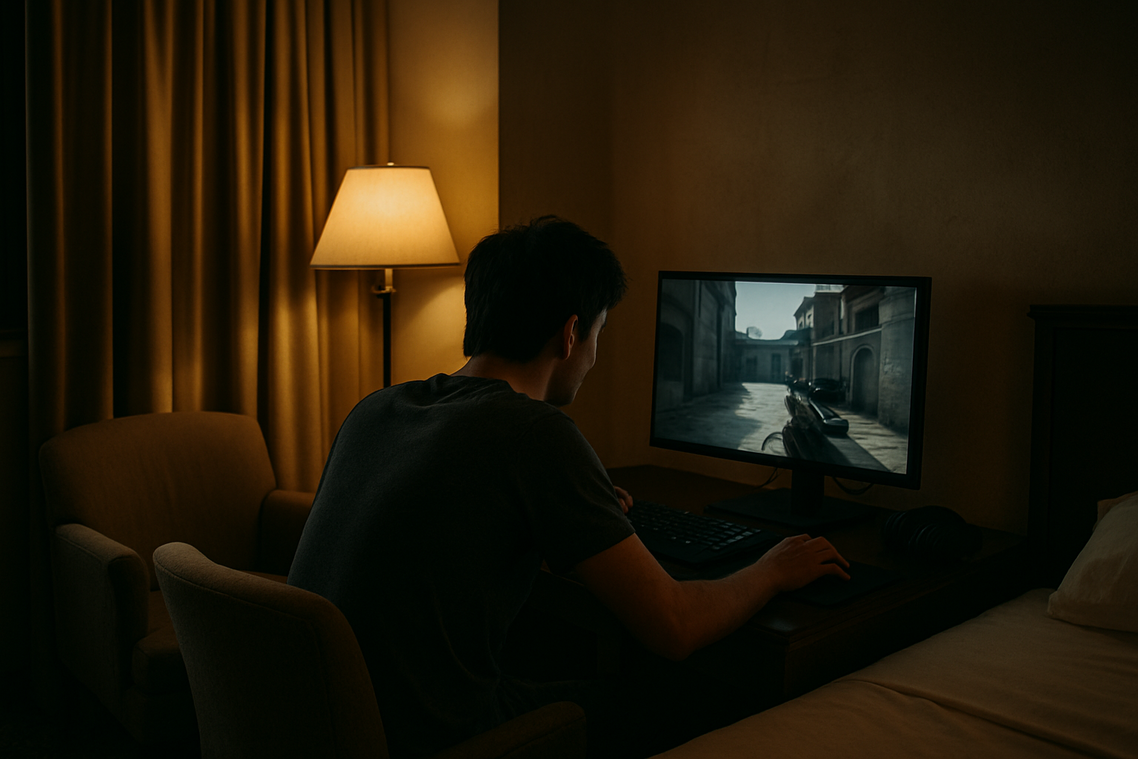
The first time I opened NVIDIA Control Panel, I felt like I’d discovered a hidden developer menu (the kind you’d expect in a sci‑fi hacking scene). I had been tweaking in‑game sliders for hours, but nothing changed—until I adjusted settings at the driver level.
Both NVIDIA Control Panel and AMD Radeon Software let you override in‑game graphics options. Think of them as command centers for your GPU (Graphics Processing Unit—the chip that renders images).
Key Settings to Tweak
- Low Latency Mode (NVIDIA) / Radeon Anti‑Lag (AMD): Reduces input lag—the delay between your mouse click and on‑screen action. In competitive shooters, this can shave milliseconds off response time. Some argue the difference is negligible. In my testing with Apex Legends, it was absolutely noticeable.
- Texture Filtering – Quality: Set this to Performance instead of High Quality for extra FPS. The visual trade‑off is minor unless you’re pixel‑peeping.
- Power Management Mode (NVIDIA) / Power Tuning (AMD): Set to maximum performance so your GPU doesn’t downclock mid‑match (yes, that happens).
If you’re trying to optimize pc for gaming performance, these tweaks often matter more than in‑game presets.
Understanding V‑Sync, G‑Sync, and FreeSync
V‑Sync prevents screen tearing (image splitting) but adds input lag. G‑Sync and FreeSync sync your monitor’s refresh rate to your FPS, delivering smooth gameplay without added delay. If supported, enable G‑Sync/FreeSync and disable traditional V‑Sync.
The Overlay Problem
Discord, Steam, and GPU overlays consume resources and can conflict. I disable them for demanding titles—especially after one overlay caused random crashes.
For broader system stability, review this step by step guide to setting up a secure home wi fi network.
Sustaining Performance: Simple Hardware Maintenance
The Enemy of Performance: Thermal Throttling
Thermal throttling happens when components slow themselves down to prevent overheating (yes, your PC is protecting itself). Dust acts like an insulating blanket, trapping heat in fans and heatsinks. Over time, that buildup can raise temperatures by 5–15°C, reducing clock speeds and stability (Intel confirms heat directly impacts turbo frequencies). Power down, unplug, open the case, and use compressed air to clear fans, vents, and heatsinks. Hold fan blades in place while cleaning to avoid damage.
RAM and Its Role
To optimize pc for gaming performance, ensure at least 16GB RAM running at rated speed by enabling XMP/DOCP in BIOS—many systems ship underclocked.
SSD vs. HDD Impact
An SSD won’t boost FPS, but it can cut load times by 50% or more, dramatically improving responsiveness and overall gameplay flow.
Ready to Feel the Difference
You now have a proven framework to eliminate stutters and low FPS. Benchmarks show optimized systems can gain 15–30% frame rate (TechSpot, 2024). By pairing system tweaks with smart settings, you optimize pc for gaming performance and unlock smoother, faster gameplay. Launch and feel it.
Ready to Take Full Control of Your Gaming Power?
You came here looking for a clear path to smoother gameplay, faster load times, and a system that actually keeps up with your skills. Now you understand the upgrades, tweaks, and security steps that truly optimize pc for gaming performance—without wasting money on unnecessary changes.
Lag spikes, overheating, low FPS, and system crashes aren’t just annoying—they ruin competitive edge and immersion. The good news is you don’t have to settle for mediocre performance anymore. With the right optimizations, driver updates, storage management, and smart configuration choices, your PC can run the way it was meant to.
Your next move? Take action today. Apply these strategies, fine-tune your settings, and stay updated with the latest performance alerts and setup guides. Thousands of gamers rely on our trusted tech insights to stay ahead of the curve.
Don’t let poor performance hold you back. Start optimizing now and unlock the smooth, high-powered gaming experience you deserve.